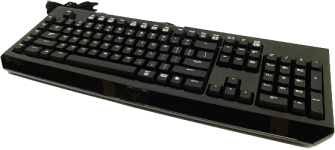
razer blackwidow ultimate stealth 2014 edition (2016-12-07)
the first keyboard i bought on purpose was, i am pretty sure, a razer blackwidow with clicky blue switches
each keypress was gloriously loud, with a sharp snap under my fingers as the key crunched past the tactile bump
it had even more than the standard 104 keys - with 5 extra programmable keys on the left side of the board
(i don’t think i ever found anything actually useful to me at the time to do with them)
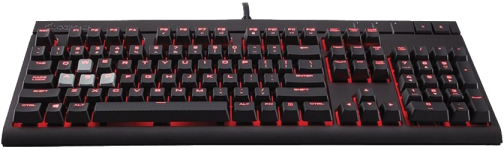
corsair strafe mechanical gaming keyboard (2018-11-03)
almost two years later, and i hadn’t learned to be less annoying with my switch choices
if i remember correctly, a couple of the keys on the blackwidow had become difficult to activate
my solution was to buy a strafe - it was a solid keyboard - i ended up giving it away to someone who needed it
for the record, i was not /such/ a gamer that i used the special grippy keys shown in the picture for the ‘wasd’ keys
i used the alternate normal keycaps it came with in the box
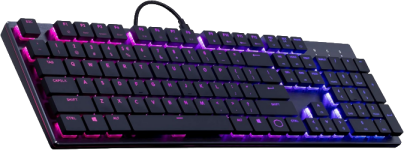
cooler master sk650 low profile mechanical keyboard (2021-11-14)
another two years and i was starting to have more finger and wrist pain when typing for long periods
i was still a fan of having all 104 keys, but wanted a keyboard with lighter switches and less travel
the sk650 had mx low profile red switches which don’t require nearly as much pressure as the mx blues the other two had
the low profile linear reds also lacked the snappy tactile bump and needed to physically be pushed less far to activate
it felt /so/ much more comfortable to type on, but it took me a while to learn to type gracefully on it
being used to blue switches, it required practice to stop bottoming out (or pressing the key down fully)
it is much better to only push the switch past the activation point, which is only partway to fully pressed
that way you don’t have the little shock of the key colliding with the frame of the keyboard and move your fingers less
this was the first keyboard where i cared about that; once i made the change, typing hurt my fingers a bit less
while i only ended up using this keyboard for a few months, i remember it v fondly - it feels like i used it for longer
if i had to go back to any of the full sized keyboards i have ever used, i would pick this one easily
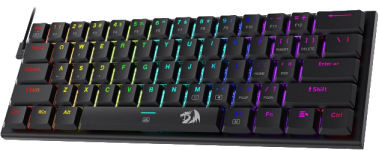
reddragon k614 anivia 60% mechanical keyboard (2022-03-08)
despite the sk650 being lighter on my fingers, my wrists were still not up to the amount of typing i needed to do
with the k614 i tried being nicer to my mouse wrist (which was the main issue) by ditching 43 keys
it lacks function keys, but the fn key + a num key counts as pressing f# so saving the row is great
it also lacks dedicated arrow keys which was /much/ more of a problem for me and no dedicated delete was awful too
as a 60% keyboard (with only 61 keys) my mouse could be /so/ much closer to its resting place on the home row
again, this helped - a lot even - but the switches were off-brand linear reds and were mushy and harder to press
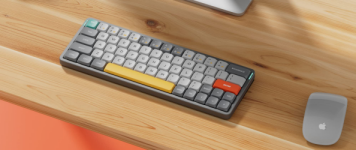
nuphy air60 v2 60% (red linear) mechanical keyboard (2022-04-18)
the reddragon felt like a meaningful step in the right direction, but the poor quality made me quickly get a new 60%
this keyboard was excellent. 60% keyboards are /so/ small that once you get used to one a 104 key keyboard seems silly
i often needed to type a lot of numbers, but having my mouse right there made using a secondary numpad v worth it
the numpad lived to the right of my mouse, which worked well for me. the air60 has dedicated arrow keys which is great
it took a little getting used to how some of the keys are moved around to get everything to fit in
not having a full right shift messed with me (and it is further left than you would expect) & del is also relocated
on the whole, the decisions nuphy made when compressing the keyboard into 60% are /way/ better than reddragon’s
despite needing to rebuild some muscle memory, if i had to use a non-split keyboard again, it would be this one
it still lives in a place of honor on my desk as a backup keyboard (& it is pretty so i am happy to have it right here)
corne low profile 40% keyboard w/ oled screens & 25g switches (2024-03-13)
using a 60% board helped a lot, but ~two years later (i had /no/ idea it was that regular until now) i wanted better
i finally switched to a split and fully programmable keyboard. corne is not a company - it is an open-source design
i went with a 40% corne instead of one the many other split keyboard designs for a few reasons:
- it is fully programmable and open-source
- please don’t bother buying a non-fully programmable split keyboard
there is /so/ much benefit to being able to make a fully custom keymap
- please don’t bother buying a non-fully programmable split keyboard
- it is a flat board (cheaper or more easy to build)
- i wanted a 40% board
- with 42 keys, every key on the corne requires you to move a finger at most one key to press it
- there are versions of the corne with six fewer keys but then you need more layers
- i feel like, at least for me, 40% is a solid balance between no spare keys but not requiring too many layers
- it is important to me that the two halves be actually separate
- having the halves appropriately spaced shifts your posture to not be naturally hunched
- spreading your boards apart leaves room for a drink, a cat, your mouse, a notepad, or something else
- i wanted a common design so that i wouldn’t struggle to find documentation and support if needed
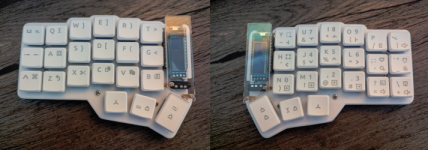
i bought a pre-made version with optional oled screens and 25g kailh choc light blue linear switches
for comparison, standard mx blues from my first couple boards require ~60g of force and the linear reds require ~45g
the new switches were /so/ light it was v easy to press a key next to the one i wanted which took some getting used to
this was mostly an issue because most of the keys on a corne are ortholinear (arranged in a grid)
this arrangement is often considered better than staggered since your fingers need to deflect to the sides much less
however, having all of the keys not exactly where my muscle memory told me they were took a day or two to adjust for
the oleds are just a fun little addition. they can be programmed to show just about whatever you could want
by default, mine showed the keymap layer i was on (which i will explain later), some art, connection type, and battery
i also got custom keycaps which have symbology representing my custom keymap
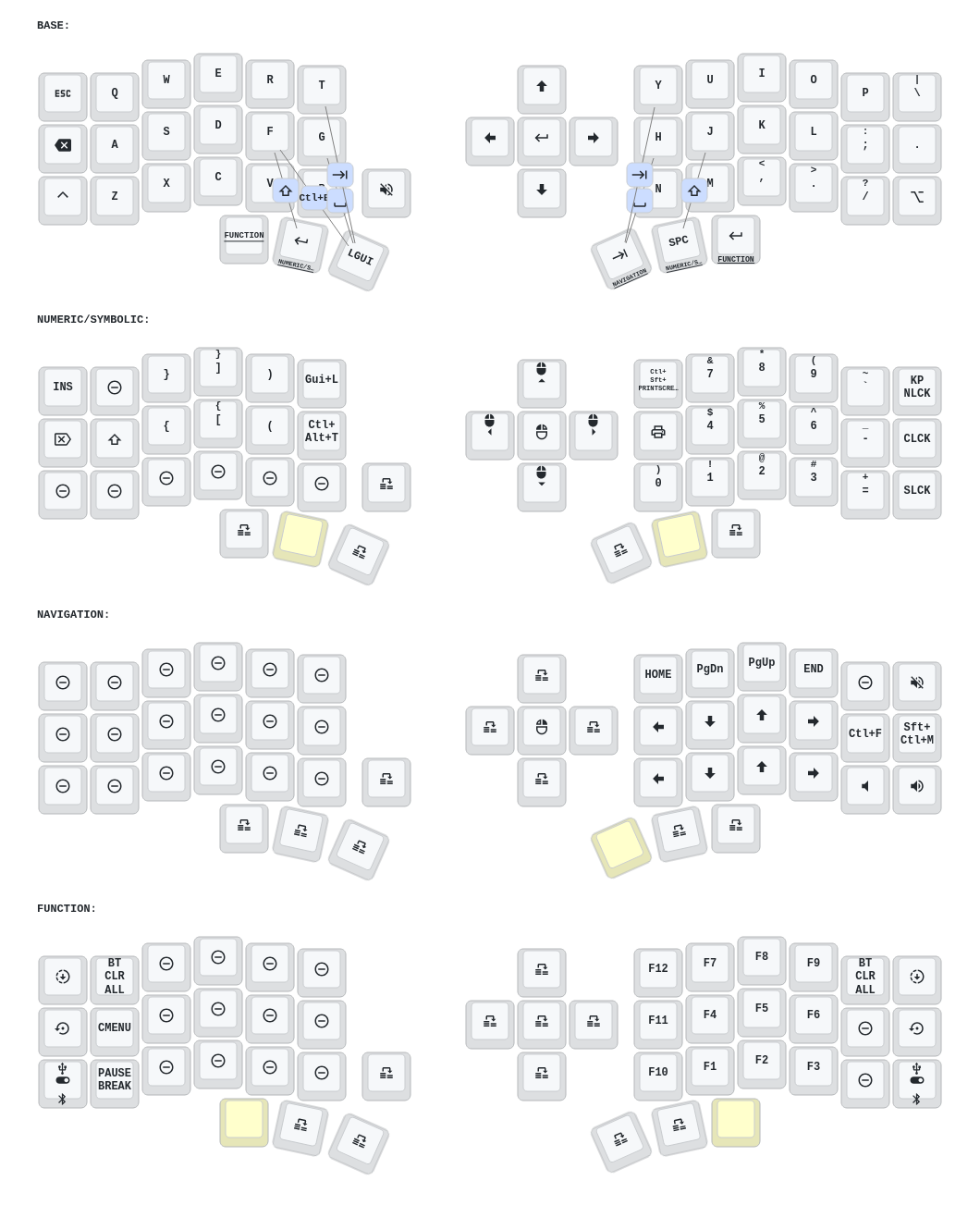
much more importantly, it is fully programmable - not only can you set what each key does, but you can have layers
shift is an example of a layer most people understand; you press a button which alters what other buttons do
in a similar way, i have defined a layer where the numpad takes the place of keys under my right hand
then, when i press the key that activates this layer, i can type out numbers using the keys under my right hand
i hope you can begin to imagine how, using layers like this, you suddenly don’t need nearly as many keys
i press backspace a lot, admittedly, and so i have it to the left of the ‘a’ key and have moved caps lock elsewhere
but there is so much more you can do - you can have pressing multiple buttons at the same time count as one input
my thumbs naturally rest on the middle thumb keys (imagine having six buttons for your thumbs instead of /one/)
i have my keymap set so that the way i hit shift is to just press in with my thumb and index finger on the same hand
to type a capital ‘j’ i press down with my left index finger and thumb at the same time and then hit ‘j’ with my right
not having to reach for shift saves my pinky fingers so much work
you can set keys to do different things when you tap, hold, double tap, or tap and hold
i have used this to set my right main thumb key to be space when i tap and activate my numpad & symbols layer when held
my left main thumb key is enter when i tap it and activates the same layer when held
if i want to hold space, i have a different key combo that does that - it’s great
you have /so/ much control over your keyboard and can make it work /exactly/ how /you/ want it to
my description of some of how i have mine set may sound like the rantings of a madwoman, but that is kinda the point
with v nearly all of these neat little open-source boards you can define your own keymap with either zmk or qmk
not only can you, you should. when /you/ decide how it works, all of those choices definitionally make sense to /you/
if you are looking for inspiration though, you can see a graphical representation of my keymap here
corne ’eyelash’ 40% keyboard w/ e-ink screens & 26g switches (2025-01-11)
roughly a year later i found the keyboard i plan to stick with†
†unless i suddenly have /so/ much money
in which case i would get a 40% cygnus or 40% dactyl - but either is so expensive (or much more difficult to make)
they aren’t flat so they are hardwired, unlike flat keyboards (like the corne) which just use a printed circuit board
the advantage they have is that they /aren’t/ flat so your fingers need to move meaningfully less
i enjoy the aesthetics of the cygnus, but the dactyl can be generated based on your exact hands to be perfect for you
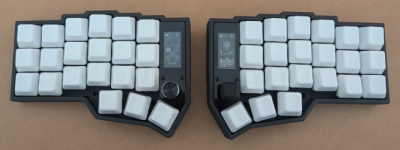
the eyelash corn has a dial (called an encoder) and a joystick added on which are also fully programmable
the e-ink screens use /so/ /v/ much less power than the oled and are also larger (but are not backlit)
this version of the board came with 1500mah batteries which is enough juice to keep it powered for almost half a year
that is so much battery, and the board uses so little, that the main loss of power is from natural discharge
this keyboard was my return to using a non-low profile board for the first time in a long time
i use the keyboard tilted up at an angle (called tenting) where the screen side of each half is elevated
i use phone holders but there are different kits and diy methods of tenting - mine rest at roughly a 40° angle
typing like this lets your wrists be at a natural angle where you don’t have to force them flat
when you force your hand flat you pronate your wrist which crosses your arm bones and leads to tightness and strain
i could not be more pleased with this keyboard - mine has kprepublic mmd silent aqua king switches and cerakey keycaps
the switches take 26g to activate which ramps up to 32g as you push further and get close to bottoming out the keys
the keycaps are ceramic and glazed - they feel crisp and start off cool to the touch in a way i find deeply pleasant
it’s hard to explain how right it feels to have the interface with your computer be so personal and /correct/ (for you)
most importantly for me - it is an interface which now causes me v little strain to use for long periods
on the rare occasions where i need to use the cheap bluetooth keyboard/mouse combo for the tv i am so sad
i so quickly feel each of the ways that a ’normal’ board makes me move or hold my fingers and wrists that are all wrong
if you are thinking about getting a split keyboard (but a corne isn’t to your taste) you might consider:
sofle or lily58 - like a corne but w/ more buttons on both the bottom & top (good for gamers who dislike using layers)
sweep - has staggered columns of keys to be more ergonomic, fewer thumb keys, and more rust programmer cred
moonlander or voyager - overpriced commercial products (if you are into that) with lots of keys